
DemandSense Revenue Attribution connects your LinkedIn Campaign Manager with HubSpot CRM to help you understand how your marketing activity contributes to revenue.
Once connected, DemandSense links LinkedIn engagement data with your HubSpot Companies and Deals to show which accounts and campaigns influence pipeline and closed revenue.
Before You Start #
To complete the setup, ensure you have the following:
You must have access to your HubSpot account and permission to authorize third-party integrations.
You must also have access to a LinkedIn Campaign Manager account with permission to view or manage ad accounts.
For best results, we recommend having at least one active LinkedIn campaign running, as this allows DemandSense to immediately begin building meaningful attribution insights.
You will first connect LinkedIn Campaign Manager, followed by HubSpot.
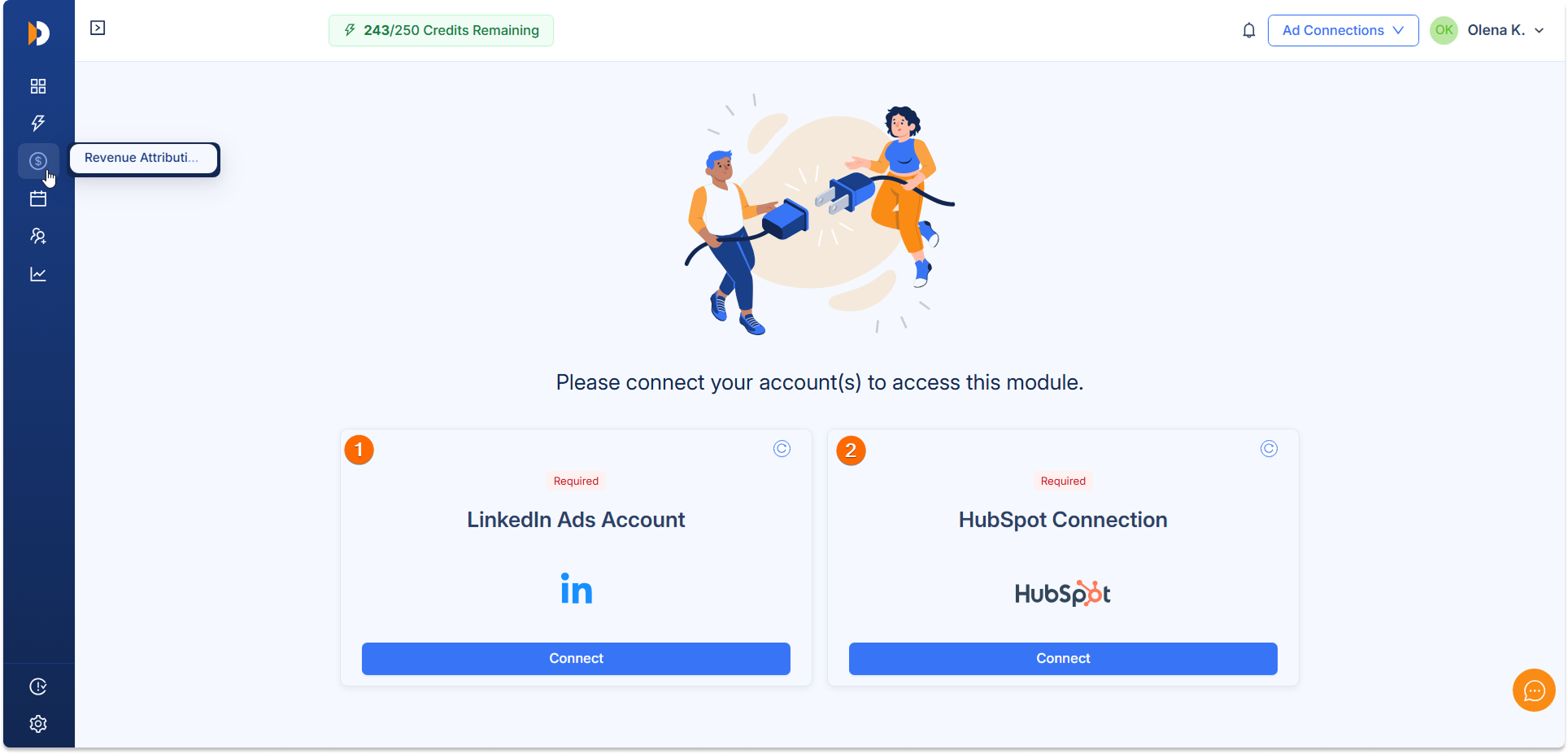
Step 1: Connect LinkedIn Campaign Manager #
Connecting LinkedIn Campaign Manager is required before connecting HubSpot.
When you click Connect, you will be prompted to sign in with your LinkedIn account. This account must have access to the LinkedIn Ads account you want to connect.
After signing in, you will be returned to DemandSense. A window will appear showing the LinkedIn Ads accounts available to your user.
Select the correct advertising account and confirm your selection.
Once completed, your LinkedIn account is connected, and DemandSense will begin processing advertising data for attribution.
Step 2: Connect HubSpot CRM #
After LinkedIn Campaign Manager has been connected, you can connect your HubSpot account.
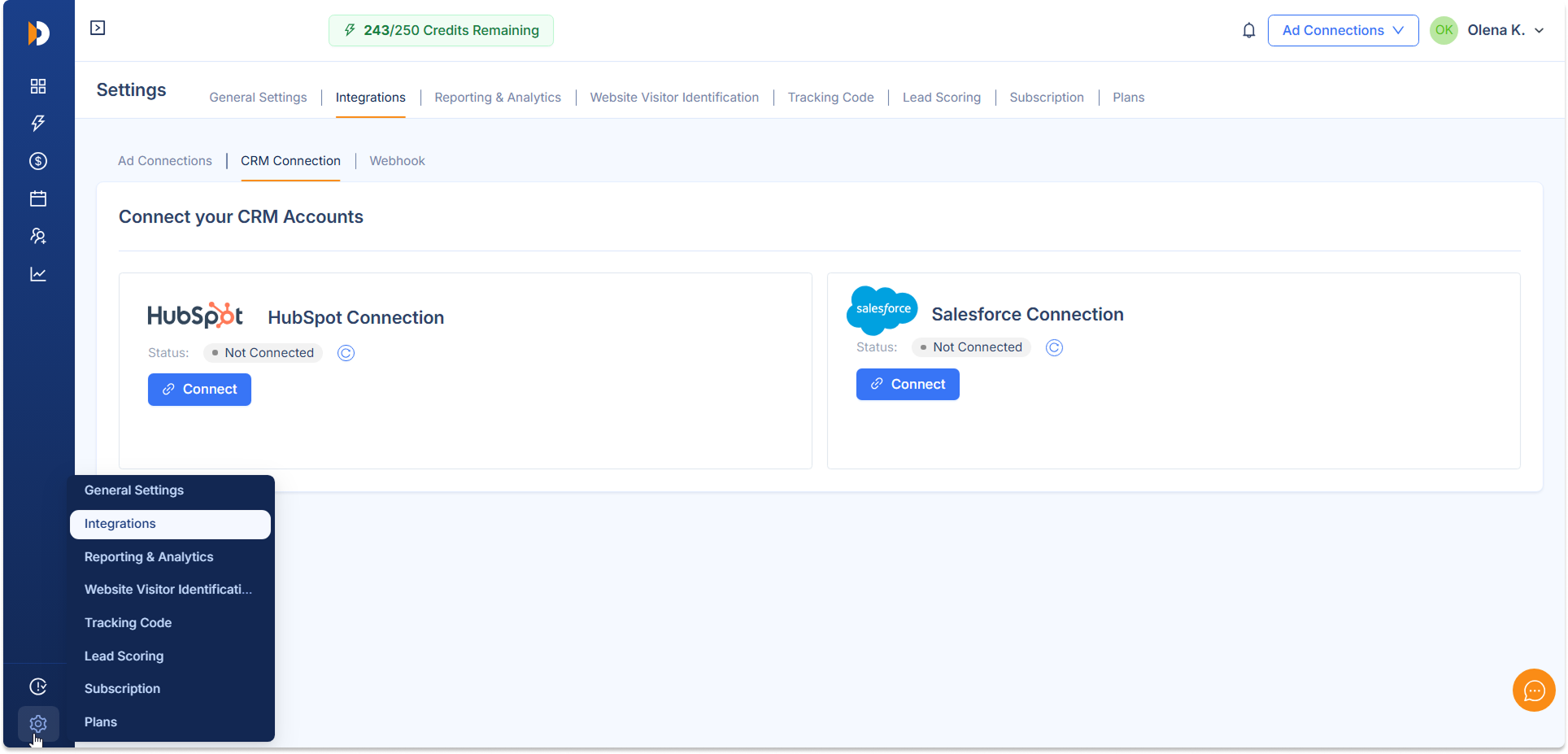
Go to Settings in DemandSense by clicking the gear icon in the bottom-left corner of the platform. Then open Integrations.
Under CRM Connections, select HubSpot and click Connect.
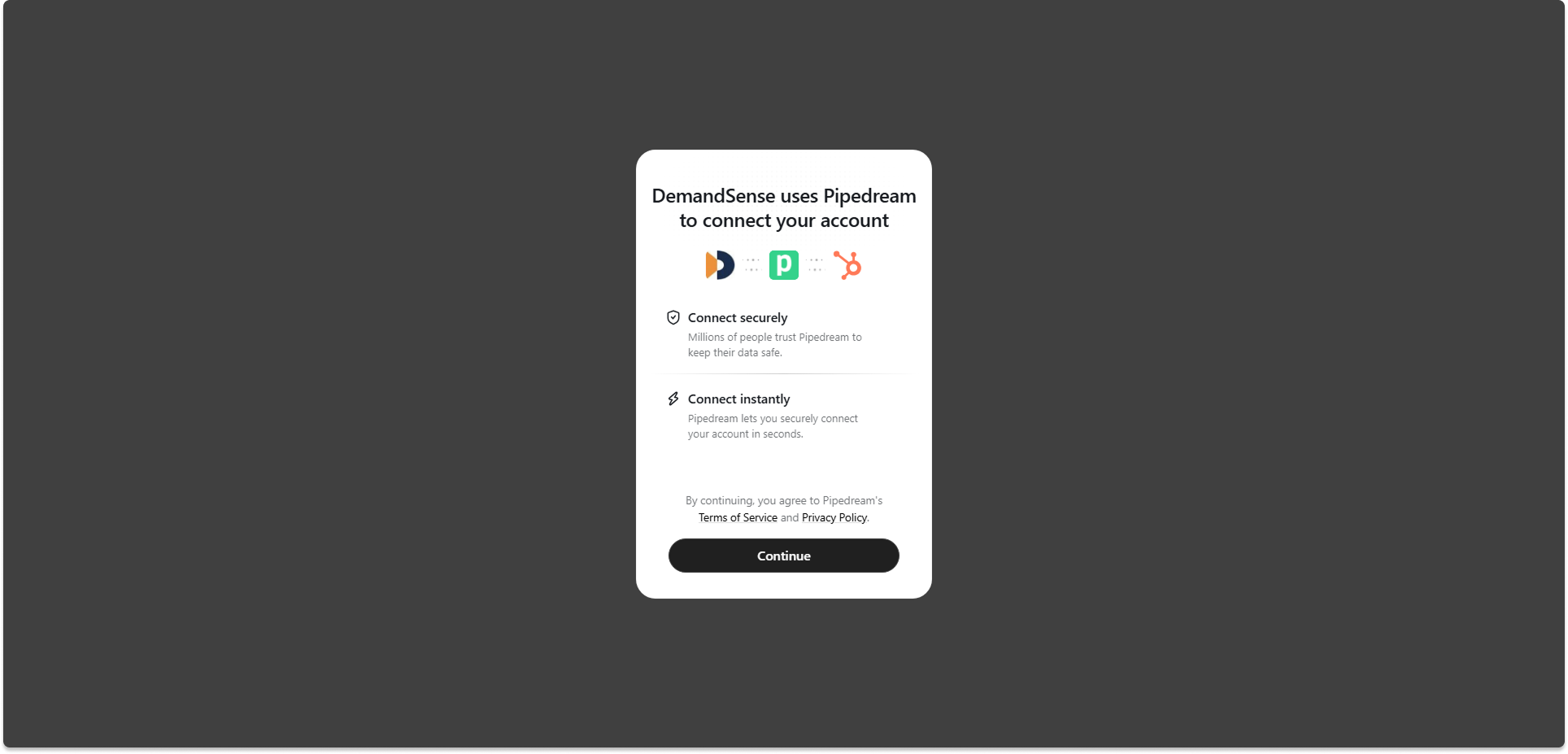
A secure authorization window will open where you will be asked to sign in to HubSpot and approve access for DemandSense.
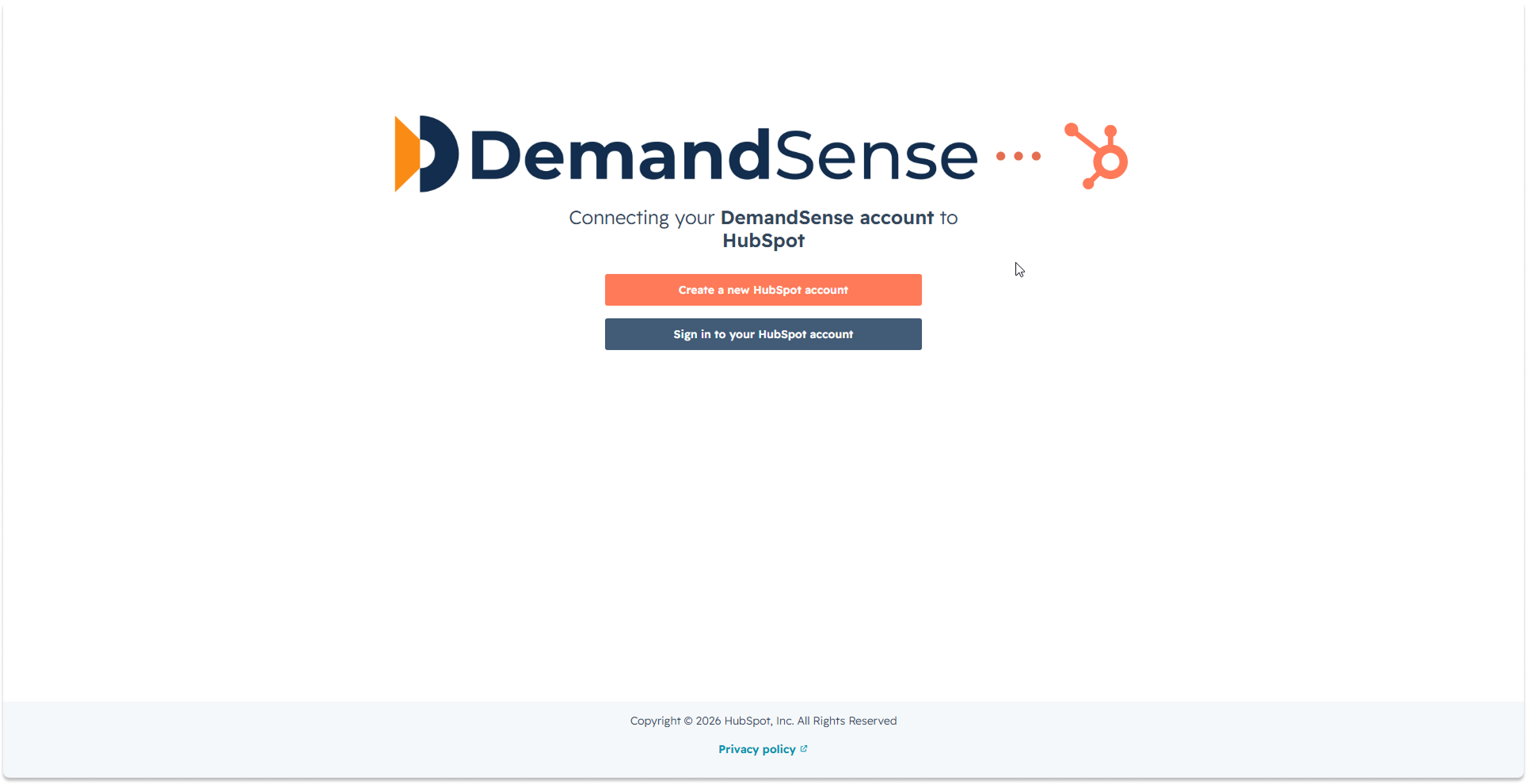
After approving permissions, you will be redirected back to DemandSense, and your HubSpot connection will be active.
You can also initiate this connection directly from the Revenue Attribution interface.
What Happens After You Connect #
Once both LinkedIn Campaign Manager and HubSpot are connected, DemandSense automatically begins processing your data.
The initial synchronization starts immediately after setup.
Depending on the size of your CRM and the amount of LinkedIn campaign activity in your account, this process may take several hours to complete.
During this time, DemandSense builds connections between LinkedIn engagement data and HubSpot Companies and Deals. It also reconstructs account-level journeys to understand how marketing interactions contribute to pipeline creation and revenue outcomes.
Once processing is complete, your Revenue Attribution dashboards will begin to populate automatically.
How DemandSense works with HubSpot data #
DemandSense uses HubSpot CRM data to connect marketing activity with revenue outcomes.
It works primarily with Companies and Deals.
Companies are used as the main entity for matching LinkedIn engagement to CRM records. Deals are used to measure pipeline and revenue impact.
In addition to analyzing existing CRM data, DemandSense can also identify high-intent companies that appear through LinkedIn engagement but are not yet present in your CRM. These accounts can be added directly into HubSpot from within DemandSense using the “Add to CRM” action.
Understanding your insights #
Once setup is complete, DemandSense provides a unified view of how LinkedIn advertising contributes to your revenue funnel.
You will be able to see which accounts engaged with your ads, how those accounts moved through your funnel, and which campaigns influenced pipeline and closed revenue.
You will also gain visibility into companies showing strong engagement signals even if they are not yet part of your CRM.
Data Sync Behavior #
After connection, DemandSense continuously updates your data to ensure your attribution insights remain accurate.
LinkedIn campaign activity and engagement signals are processed on a scheduled basis, while HubSpot CRM data is synced automatically whenever changes occur.
This ensures that your reporting reflects both historical performance and ongoing marketing activity.
Supported Plans #
DemandSense Revenue Attribution is available on:
- DemandSense Basic
- DemandSense Plus
Troubleshooting #
If something does not appear immediately after setup, this is usually expected during initial processing.
Common cases include:
If LinkedIn campaigns do not appear, verify that you selected the correct Ads account during connection and that your LinkedIn user has sufficient permissions.
If HubSpot data is missing, confirm that the connection is active and reconnect if permissions have changed.
If data seems delayed, allow time for scheduled processing cycles to complete.
If needed, you can disconnect and reconnect either integration on the Settings page.
Support #
If you need help, you can reach us at:
Email: [email protected]
Help Center: https://knowledgebase.demandsense.com/
Contact: https://www.demandsense.com/get-in-touch
Final Note #
DemandSense Revenue Attribution helps you understand the real business impact of your LinkedIn advertising by connecting campaign engagement with HubSpot CRM data.
It transforms LinkedIn from a performance channel measured in clicks and impressions into a revenue-driven marketing system that shows how campaigns contribute to pipeline and closed revenue.