
Send your closed-won deals and qualified opportunities from your CRM straight to LinkedIn, so LinkedIn’s ad algorithm can optimize your campaigns around real revenue — not just clicks.
What is this integration? #
Normally, LinkedIn only knows what happens on LinkedIn (clicks, form fills, etc.). It doesn’t know which of those leads actually turned into paying customers.
This integration closes that gap. DemandSense connects to your LinkedIn Ad Account and automatically streams two events from your CRM:
| Signal | What it tells LinkedIn | Includes deal value? |
|---|---|---|
| Closed-Won | A deal was won | ✅ Yes — deal amount + currency |
| Qualified Opportunity | A lead became a qualified opportunity | No — just a count. |
LinkedIn uses this information to optimize your ads toward the people and companies who actually convert into revenue and to give you more accurate reporting on which campaigns are really working.
How the pieces fit together
There are three separate things involved in CAPI:
1. CRM event → 2. DemandSense signal → 3. LinkedIn conversion rule
For example:
Deal moves to Closed-Won in your CRM → Closed-Won signal → LinkedIn Purchase conversion
The CRM event is what determines when an event is generated. The LinkedIn conversion rule is the destination where LinkedIn receives and reports that event.
Important: The name of a LinkedIn conversion rule does not determine what DemandSense tracks. Selecting or creating a conversion rule simply tells DemandSense where to send the selected signal.
This distinction is important because you may see a LinkedIn conversion named “Closed-Won,” “Purchase,” or another name. The name itself does not trigger the conversion.
What does each signal actually track? #
Closed-Won
The Closed-Won signal represents a deal that moves to the Closed-Won stage in your CRM. DemandSense sends this to LinkedIn as an offline PURCHASE conversion and includes the deal amount and currency. The default timestamp is the deal’s Close Date.
It is not a website conversion and is not triggered by a free-trial signup or another LinkedIn conversion. The source event is the CRM deal reaching Closed-Won.
Qualified Opportunity
The Qualified Opportunity signal represents a qualified opportunity being created in the CRM. DemandSense sends it to LinkedIn as a mid-funnel LEAD event. Unlike Closed-Won, this signal does not include monetary value. It is a count-only event, using the opportunity’s Created Date as its default timestamp.
Before you start #
- You’ll need admin access to your LinkedIn Ad Account.
- Your CRM should already be connected to DemandSense (see Settings → Integrations → CRM Connection).
- No engineering or developer work is required — this is a guided setup.
Step 1: Connect your LinkedIn Ad Account #
- Go to Settings → Integrations → CAPI.
- Select LinkedIn Conversions API from the list of destinations.
- Click Connect and log in to LinkedIn when prompted.
- Choose the Ad Account you want to send conversions to.
Your credentials are entered directly on LinkedIn’s own login screen — DemandSense never sees or stores your LinkedIn password.
Once connected, you’ll see a green Connected status along with your account name.
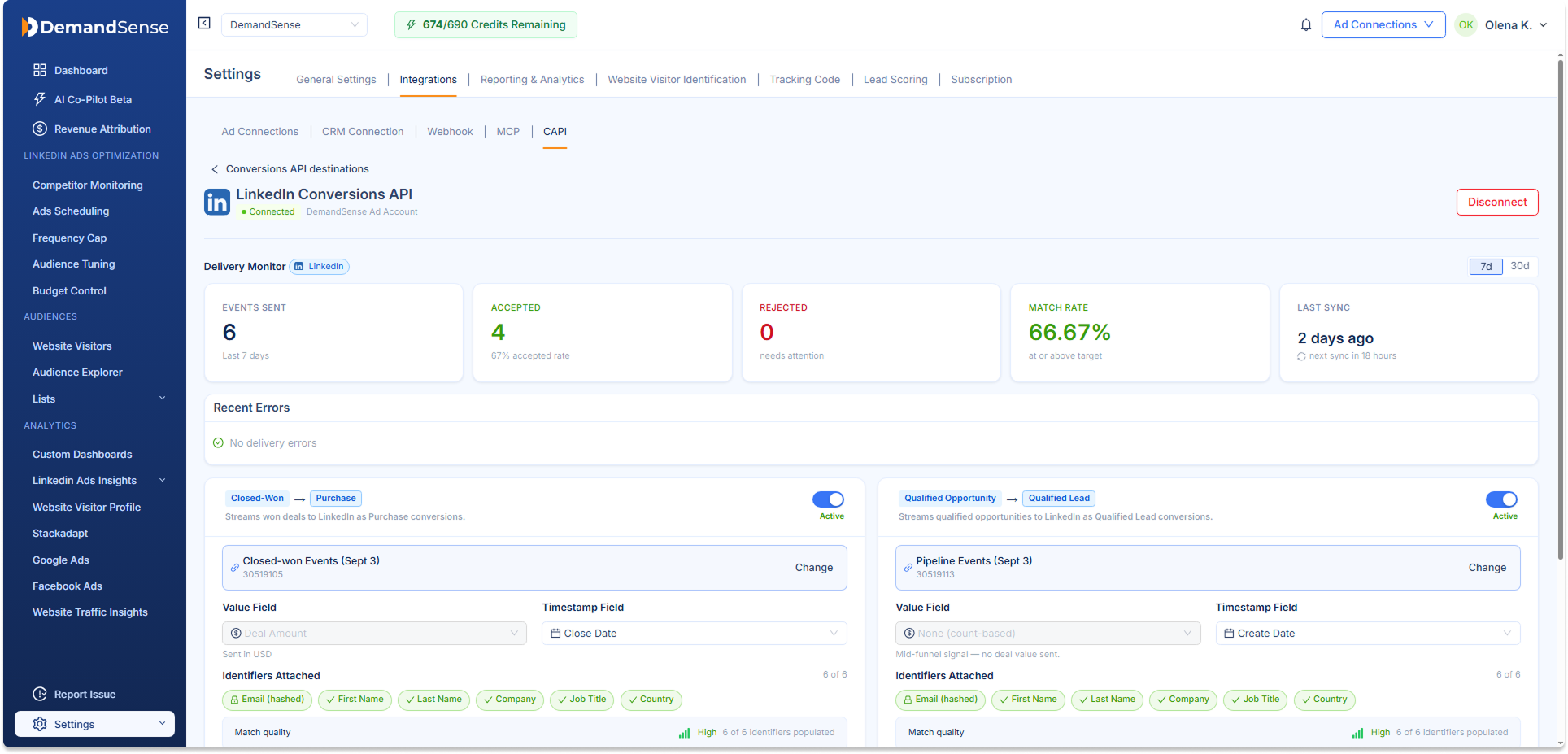
Step 2: Turn on a signal and map it to a conversion rule #
Each signal (Closed-Won or Qualified Opportunity) needs to be linked to a conversion rule in LinkedIn before it can send any data. Think of a conversion rule as the “bucket” LinkedIn uses to collect and report on this specific type of event.
- Toggle the signal On.
- When prompted, either:
- Select an existing LinkedIn conversion rule, or
- Create a new one right from this screen.
- Save your changes.
What does “map” or “bind” mean?
Mapping or binding a signal simply means telling DemandSense, “Send this DemandSense signal to this LinkedIn conversion rule.”
For example:
Closed-Won signal → LinkedIn “Closed-Won” conversion rule
Once the signal is active and the rule is mapped, DemandSense can send the corresponding CRM events to LinkedIn.
You are not defining the trigger when you select the LinkedIn conversion rule. The CRM event determines when DemandSense generates the signal; the conversion rule determines where LinkedIn receives it. The connection therefore works like this:
CRM → DemandSense signal → LinkedIn conversion rule → LinkedIn
A few important rules:
- Each conversion rule can only be used by one signal. If a rule is already in use, you’ll see whose it is (e.g., “Bound to Closed-Won”) and won’t be able to select it.
- If you turn a signal on but skip mapping a rule, it will show as “Action needed” instead of “Active“—no data is sent until a rule is mapped.
- If a rule you were using gets changed or disabled on the LinkedIn side, your signal will automatically show “Action needed” again.
These rules ensure that, for example, mid-funnel Qualified Opportunity events aren’t accidentally sent into a LinkedIn conversion rule intended for revenue-generating Closed-Won deals.
What happens when a CRM event occurs?
Once a signal is active and mapped to a LinkedIn conversion rule, DemandSense processes eligible CRM events through the following flow:
CRM event → DemandSense event builder → identity and consent checks → LinkedIn CAPI → delivery result
For a Closed-Won deal, for example:
Deal moves to Closed-Won → DemandSense creates a Closed-Won event → attaches deal amount, currency, timestamp, and available identifiers → sends it to the bound LinkedIn conversion rule.
You don’t manually trigger each conversion. Once the signal is configured, DemandSense handles the event delivery.
Step 3: Review what gets sent #
For each signal, you can see and adjust:
- Value Field — for Closed-Won, this defaults to your CRM’s Deal Amount (in your deal’s own currency). Qualified Opportunity is count-only and has no value field.
- Timestamp Field — defaults to Close Date (Closed-Won) or Created Date (Qualified Opportunity).
- Identifiers Attached — the customer details are sent along with each event to help LinkedIn match it to the right person. This always includes a hashed email, plus first name, last name, company, job title, and country when available.
- Match Quality — a simple Low / Medium / High indicator showing how well-matched your events are likely to be, based on how many identifiers are populated. The more identifiers attached, the better LinkedIn can match the event to the right ad click.
Step 4: Let the first sync run #
Once a signal is active with a mapped rule, DemandSense automatically sends your recent historical Closed-Won deals (within LinkedIn’s accepted lookback window) — you don’t need to trigger a separate backfill.
Heads up: sending historical conversions can change the reported performance of campaigns that already ran, since LinkedIn will now credit them with conversions it didn’t previously know about.
Until your first event is delivered, you’ll see a simple setup checklist instead of performance numbers, showing:
- Enable a signal
- Map a conversion rule
- Wait for the first sync
Understanding the Delivery Monitor #
Once your connection is live, the Delivery Monitor shows how things are going over the last 7 or 30 days:
- Events Sent — total events sent to LinkedIn.
- Accepted — events LinkedIn successfully received and processed.
- Rejected — events LinkedIn couldn’t process (see below).
- Match Rate — the percentage of accepted events LinkedIn could confidently match to a real person.
- Last Sync — when data was last sent and when the next sync is expected.
Note: signals that are turned on but not yet mapped to a rule (Action needed) are excluded from these counts, so they don’t make your numbers look artificially healthy or unhealthy.
If events are rejected #
Click into Rejected to see why. Each reason falls into one of three types:
- Fixable in your CRM — e.g., a missing or invalid email. You’ll see the specific deals affected, with a direct link back to that record in your CRM, and a Re-send option once it’s fixed.
- Informational — e.g., a duplicate event LinkedIn already had. No action needed.
- Platform issue — a problem on DemandSense’s side, not something you can fix. These are automatically routed to support.
Sensitive info like email addresses is masked by default (e.g., j••••@demandsense.com) — click to reveal it if needed. If a contact has been marked “do not share” in your CRM, it’s excluded from delivery entirely and won’t ever show up here.
For very large rejection lists, up to 100 records are shown at a time; the header will tell you if there are more, along with a note to review the rest directly in your CRM.
Data privacy #
- Email addresses are SHA-256 hashed before they ever leave DemandSense — LinkedIn never receives a raw email address.
- You can view exactly what’s sent per event: conversion value, conversion timestamp, and hashed identifiers.
- Any deal or contact flagged as “do not share” in your CRM is automatically excluded from every event sent.
Verifying delivery in LinkedIn Campaign Manager #
Want to double-check the data on LinkedIn’s side?
- Go to your LinkedIn Ad Account.
- Navigate to Measure → Conversion Tracking.
- Find the conversion rule name that matches the one you bound to your signal in DemandSense.
- Check the Data Source column — it should show your CRM as the source.
- Check the Type column to confirm the conversion category LinkedIn recorded.
Remember what the LinkedIn conversion means
The LinkedIn conversion rule you find here is the destination/reporting bucket for the DemandSense signal. For example, if you bound the Closed-Won signal to a LinkedIn conversion rule called “Closed-Won Deals”, that rule receives the Closed-Won events generated from your CRM.
Changing the name of the LinkedIn conversion rule does not change what DemandSense considers a Closed-Won event.
Frequently Asked Questions #
LinkedIn Conversions API (CAPI) FAQ #
Can I map two signals to the same LinkedIn conversion rule?
No. Each rule can only belong to one signal, so LinkedIn’s optimization and your reporting stay accurate.
What happens if I turn a signal off?
Future events stop sending, but your delivery history is preserved—it won’t erase past performance data.
Can I manually re-send old deals that closed before I connected?
No—only events that were actually attempted and rejected can be resent. Deals that closed before you connected are picked up automatically through the first sync, not through re-send.
How often does data sync?
Near real-time whenever a deal or opportunity changes stage, with a daily sync as a safety net.
Which currency is sent?
Deal amounts are sent in their native currency, along with the currency code—LinkedIn handles any conversion on its end.