
Welcome to AI Co-Pilot—the fastest way to get trustworthy answers from your LinkedIn Ads, Google Ads, and Facebook Ads.
Just ask a question in plain English and get beautiful charts, tables, and clear explanations in seconds—no SQL, no waiting for analysts, and no copying data to spreadsheets.
How to Get Started #
- In the left sidebar, click AI Co-Pilot.
- You’ll see a clean chat window with suggested Community Prompts from our Prompt Library. Click any suggested prompt or just start typing your own question.
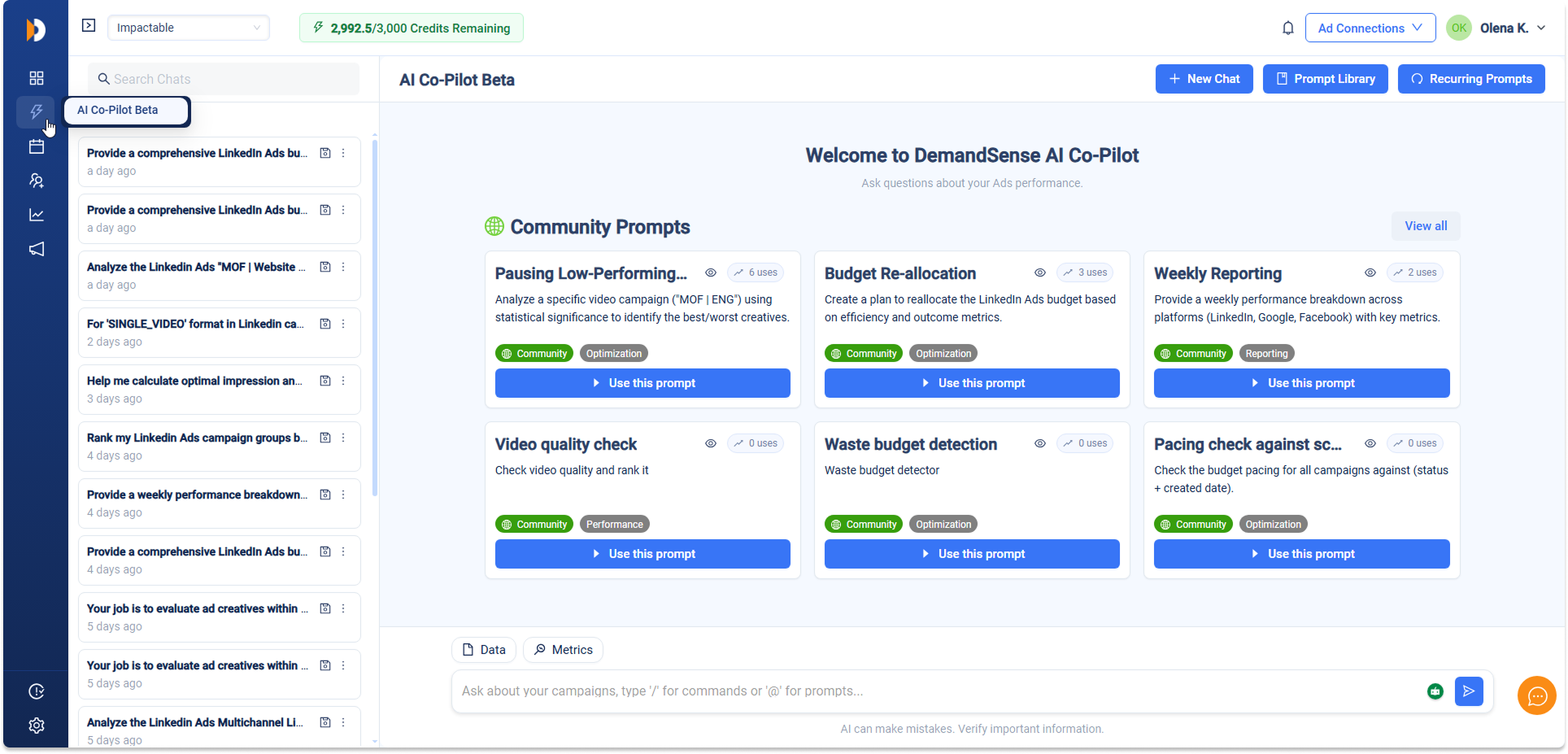
Pro tip: Your first question almost always works perfectly—80%+ of users mark their very first answer as “Helpful”!
Asking Questions the Smart Way #
You have three superpowers to get even better and faster results:
1. Natural Language #
- “Why did CPC spike after May 15?”
- “Show me the top 10 creatives by MQLs last month.”
- “Which US-based SaaS companies visited the pricing page in the last 7 days?”
2. Guided Chips #
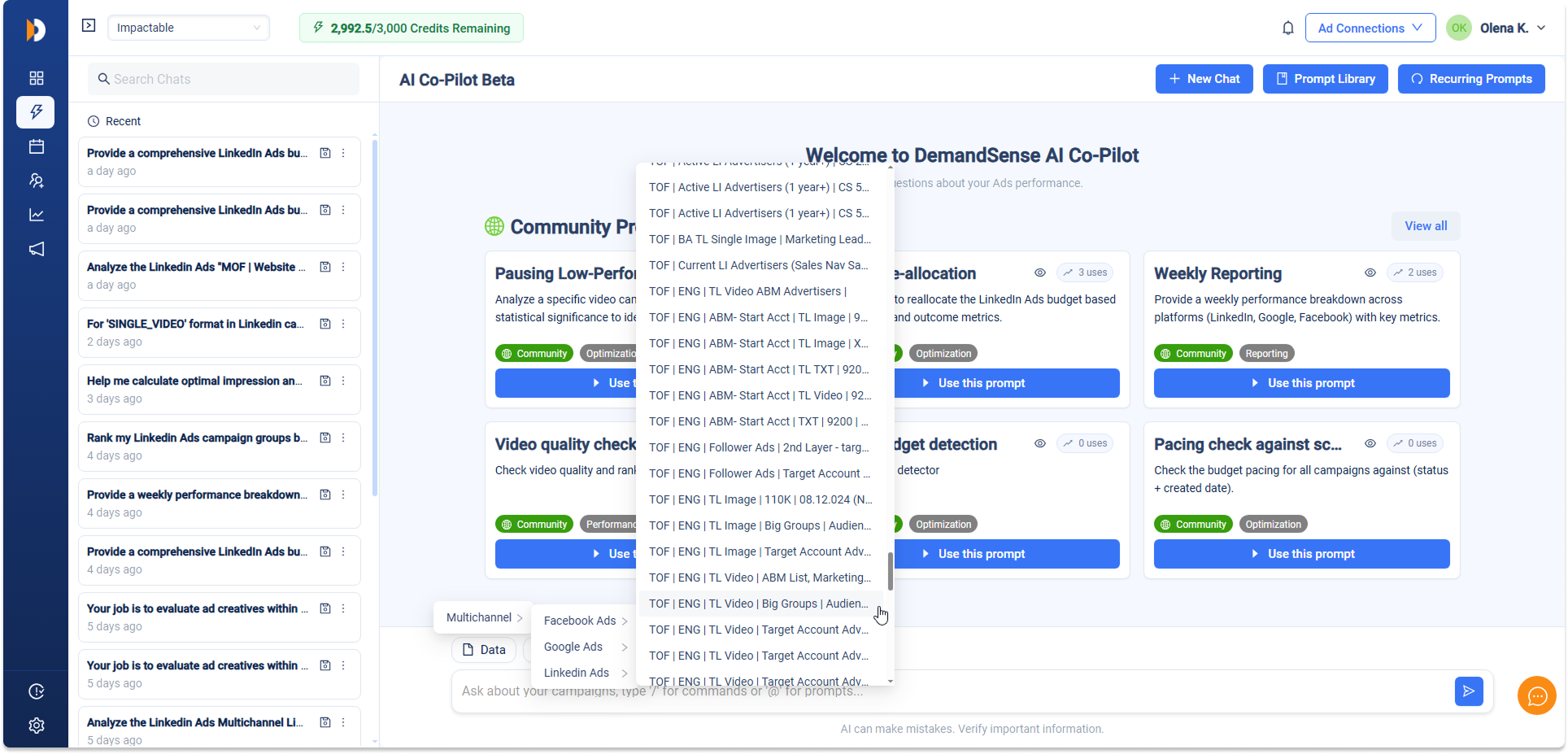
Right above the input box you’ll see chips: Data and Metrics. These are perfect when you’re not sure how to phrase something.
- Click Data → choose LinkedIn Ads, Google Ads, Facebook Ads
- Click Metrics → pick Spend, Conversions, CTR, etc.
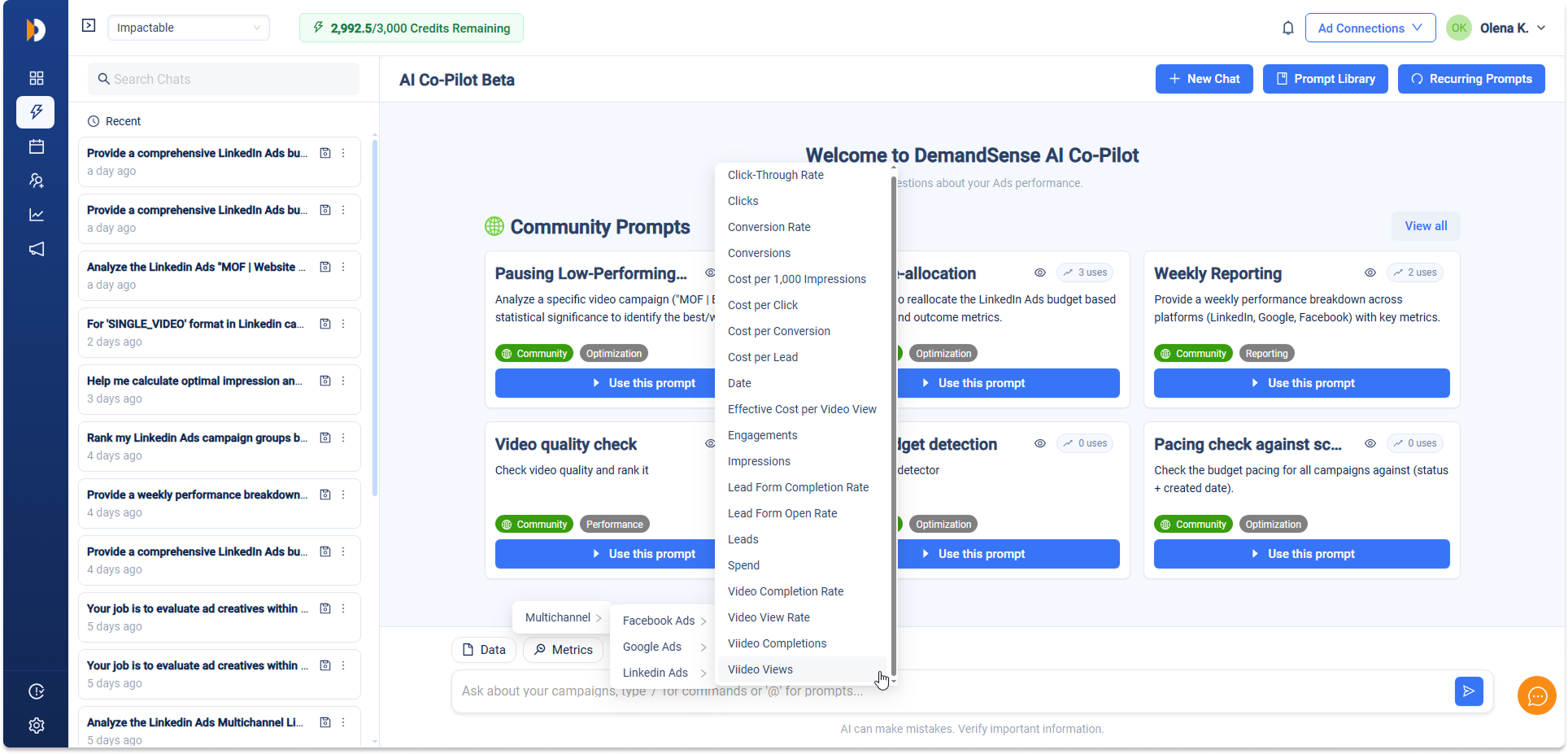
These chips are inserted directly into your message and dramatically improve accuracy because they tell the AI exactly what data you want.
3. Slash Commands #
You’ll also see a hint like “Ask about your campaigns, type ‘/’ for commands or ‘@’ for prompts…”
Type / in the input box → a searchable menu appears with every dataset and metric.
Understanding AI Responses #
Every answer appears as a clean card with:
- A concise written explanation
- Key metric cards with trend arrows
- A chart and/or table (when relevant)
- Action buttons: Thumbs Up/Down (please use—it makes our AI smarter), Copy.
Answer and Chart Tabs #
Most responses use simple tabs at the top of the card so you can switch focus instantly:
- Answer (selected first by default)—the full story, explanation, and any key takeaways in plain words. Perfect for reading quickly or understanding the “why” behind the numbers.
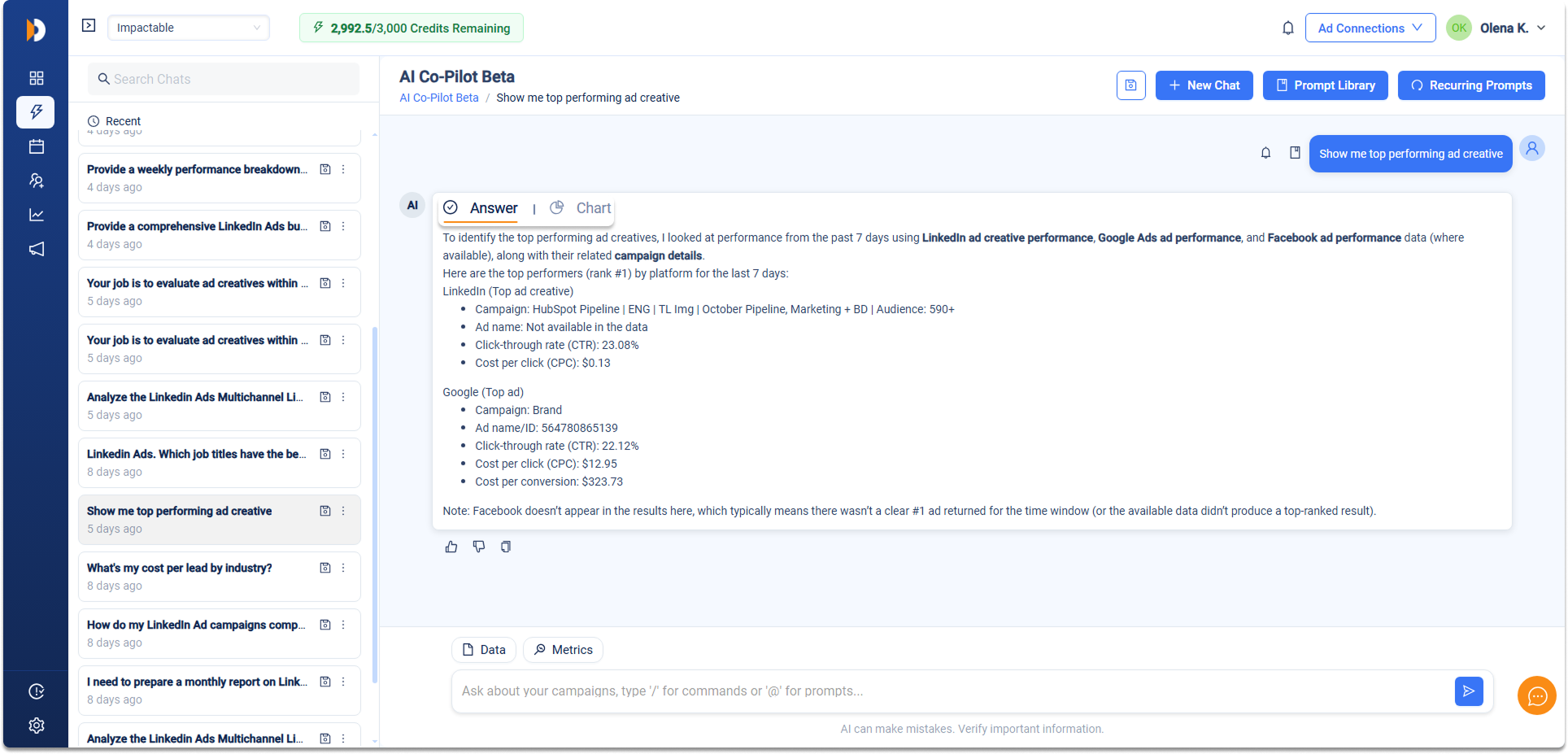
- Chart—zooms in on just the visualization. Great when you want to study the graph closely, screenshot it for a report, or present it to your team.
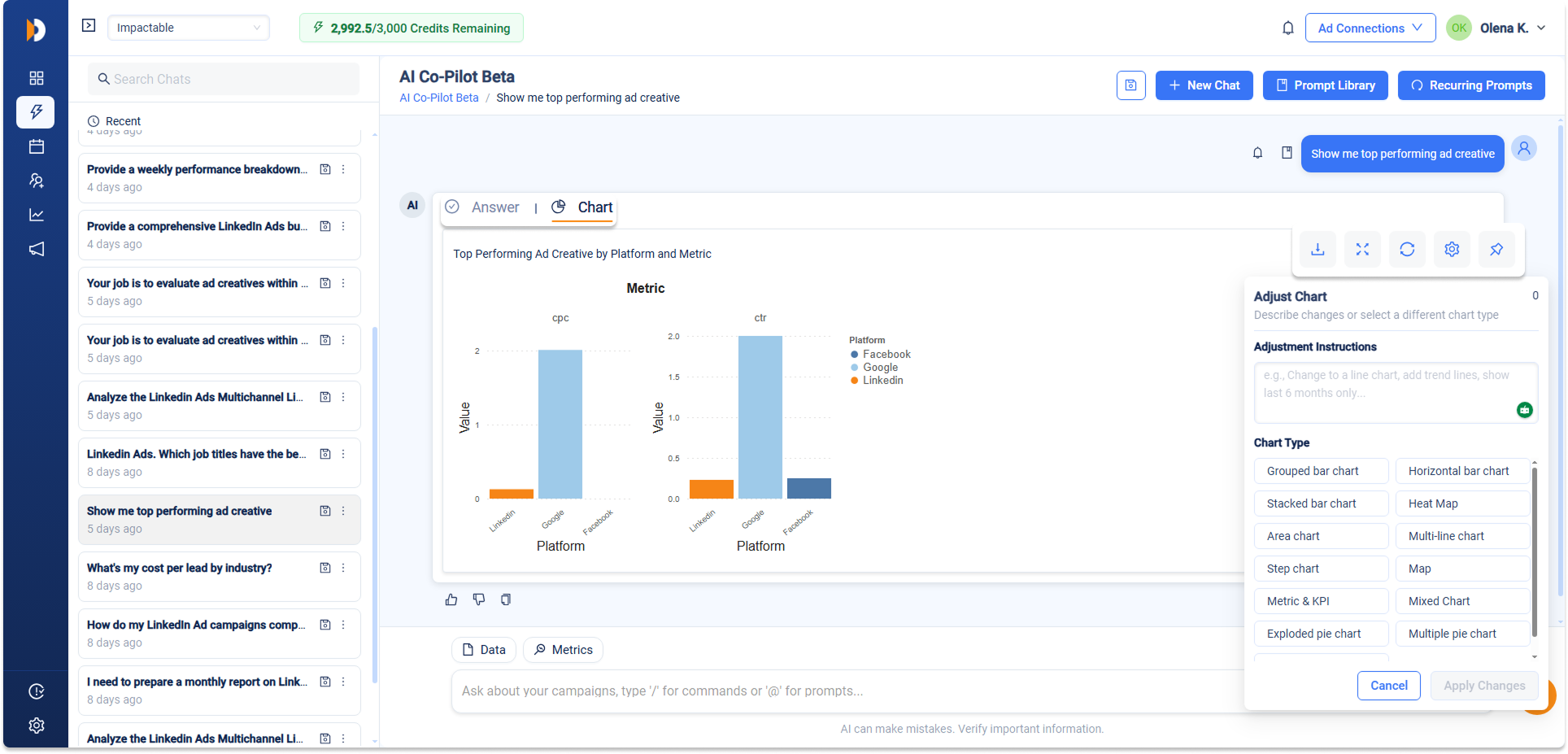
In the Chart tab you’ll see:
- A clear title like “Top Performing Ad Creative by Platform and Metric”
- One or more charts side-by-side or stacked
- A row of helpful icons in the top-right corner of the chart area:
- Download (down arrow)—save as an image
- Zoom In (expand icon)—make the chart bigger to see every detail
- Regenerate (circular refresh arrow)—get a fresh take on the same data (costs 1 AI credit)
- Adjust chart (gear/settings icon)—tweak it with your own words or pick a new chart style (costs 1 AI credit)
- Pin to Dashboard (pushpin/pin icon)—save this insight forever for your team. Click it, pick an existing dashboard (or create a new one on the spot), and confirm. The chart drops right in with all its filters and date settings intact—and it stays automatically up-to-date with fresh data every time you open the dashboard.
Quick tip: Hover over any icon to see what it does—the Adjust button even shows a little tooltip. If the chart looks almost perfect but not quite, click the gear icon and type something simple like “Make the bars horizontal” or “Switch to line chart”—the AI will handle the rest (just 1 credit).
This layout keeps things focused: read the story first, then flip to the chart when you’re ready to dive deeper. Enjoy exploring—you’re in full control now!
Scheduling Recurring Prompts #
Love a question that gives you exactly the insights you need? Turn it into a hands-free habit—have the AI run it automatically every day, week, or month and deliver fresh results straight to your inbox. No more remembering to check!
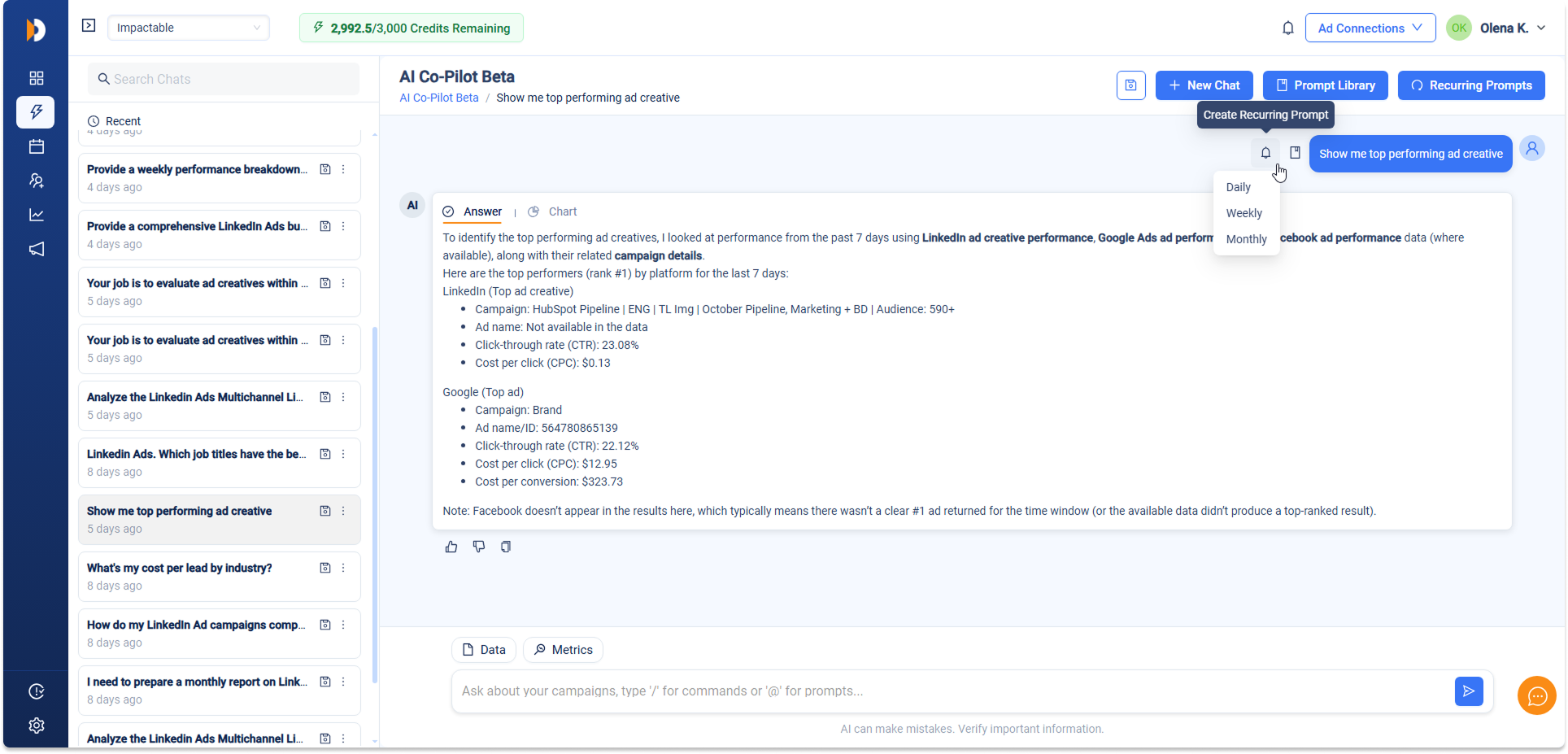
Here’s how to set it up in seconds:
- Find the message bubble you sent (the prompt you want to repeat).
- Locate a small bell icon (🔔) that appears on the left side of your prompt.
- Click the bell icon to open the scheduling options.
- Pick your frequency: Daily, Weekly, or Monthly (choose the day/time that fits your rhythm, like every Monday at 9 AM).
- (Optional) Add a short custom note or title that appears with each delivery—great for context like “Weekly Top Creative Performance.”
- Hit Create Recurring Prompt—you’re done!
From then on, the AI re-runs your exact prompt on schedule using the latest data and posts the full response (explanation + charts/tables) automatically. You’ll wake up to ready-to-review insights without lifting a finger.
Quick tips:
- Manage or cancel any recurring prompt later from the Recurring Prompts tab (top of the AI Co-Pilot page).
Set one up today and let the AI handle the routine stuff—you’ve got more important things to focus on!