
Search for Claude marketing skills and you’ll find long lists: SEO audits, landing page copy, CRO checklists, a cold email writer or two. Paid LinkedIn gets one generic “ads audit”, if it shows up at all.
LinkedIn Ads has its own ways of misleading you, though. A Spotlight ad looks broken on CTR when it’s doing exactly the job it was bought for. A CTR that slid for two weeks gets called fatigue when the whole campaign dipped with it. And the companies that clicked your ads three times last month never reach sales, because nobody checked them against the CRM.
Ask a general AI assistant about your campaigns and it will happily walk into all three. It reads the numbers it’s given, applies whatever rule of thumb sounds right, and gives you a confident answer that fits any campaign rather than yours.
This article covers three Claude skills written for those traps: one for wasted spend, one for creative decay and one for warm accounts that never became pipeline. They’re free, open files from the B2B AI Standard for LinkedIn Ads, written by the DemandSense team. Each runs on Campaign Manager exports you attach to a chat, or on your account through DemandSense MCP with no exports at all. For each one you’ll find what it needs, how to run it, what it checks and what to do with the answer.
Summary: Claude Marketing Skills for LinkedIn Ads
- A Claude skill is a file of instructions that Claude loads when your request matches it: what data to ask for, how to read it, and what it must not conclude.
- Waste Budget Detection finds campaigns that spent in the last 30 days without producing what they were built for, and checks tracking before it blames anything.
- Creative Decay Watchlist finds ads whose CTR has slid for weeks and tells a tired ad from a campaign-wide dip.
- No-Deal Warm Leads Finder lists companies engaging with your ads or site that have no open deal, ranked in tiers for sales.
- All three only read your data. They can’t pause a campaign, change a budget or write to your CRM.
- With DemandSense MCP connected, Claude reads the data from your workspace instead of asking for exports.
- More skills and scenarios come from LinkedIn Ads experts such as Justin Rowe, Joshua Stout and AJ Wilcox, in the same open collection.
What Claude Skills Are and How They Differ From Prompts
A skill is a folder with a SKILL.md file in it. The file tells Claude when to use the skill, what data to ask for, which method to follow and what the answer should look like. Claude keeps only the short description of each installed skill in mind and loads the full instructions when your request matches one, so you can install dozens without crowding the conversation.
The difference from a saved prompt is in the rules. A prompt says “find wasted spend”. A skill says which campaigns can’t be called waste (an awareness campaign with zero leads is doing its job), how many clicks a figure needs before it means anything, and what to check before anyone recommends a pause. That’s the part a general model gets wrong on LinkedIn data, and the part you’d otherwise retype every time you ask.
Skills also travel. The same SKILL.md runs in Claude.ai, the Claude desktop app and Claude Code, and other assistants can read it too, so a method your team agrees on stays the same no matter who runs it.
How to Install the Skills in Claude
You don’t have to install anything to try a skill. Every section below has a prompt that tells Claude to load the skill straight from GitHub, so you can paste it into any chat with your exports attached.
If you’ll use the skills every week, installing them saves the pasting:
- All of them in Claude.ai or the desktop app (paid plans): open Customize → Plugins → Add → Add marketplace → Add from a repository, enter
demandsense-labs/linkedin-ads-skillsand sync. Then open LinkedIn Ads Skills in your plugin list and click Add. The skills then work in chat, in Cowork and in Claude Code. - One skill in Claude.ai: download its ZIP from the Skill files release on GitHub and upload it under Customize → Skills → Add → Upload a skill.
- In Claude Code: run
/plugin install linkedin-ads-skills --marketplace demandsense-labs/linkedin-ads-skills, then ask for what you need in plain words (“where are we wasting budget”) or call a skill by name, for example/linkedin-ads-skills:waste-budget-detection.
Codex, Cursor, Gemini CLI and GitHub Copilot can install the same files with Vercel’s skills CLI: npx skills add demandsense-labs/linkedin-ads-skills.
Exports or DemandSense MCP: Two Ways to Feed the Skills
A skill is only as good as the data it reads, and there are two ways to give it that data.
With exports, you download the reports a skill asks for from Campaign Manager (and from your CRM, where needed), attach them to a chat and paste the prompt. It works on any Claude plan. The skills already know how Campaign Manager writes its CSV files, including the UTF-16 encoding and the report-info lines above the header, so there’s nothing to clean first. What you get is a snapshot: the answer is as current as the moment you exported, and for checks that need several sources, you’re the one lining up the files.
With DemandSense MCP, you connect DemandSense to Claude once, and the same skills read your LinkedIn ads data, identified website visitors and CRM status from your DemandSense workspace. There are no files to export, nothing is a week old by the time you open it, and you don’t match companies across tools by hand. MCP comes with every DemandSense plan and with the 30-day free trial, and this guide to analyzing LinkedIn Ads with Claude shows how to connect it.
The difference is small for the first skill and large for the third. Finding warm accounts with no deal depends on LinkedIn engagement, site visits and CRM status sitting in one shared context. With exports, that’s three files from three tools.
1. Waste Budget Detection: Find LinkedIn Spend That Produced Nothing
Wasted LinkedIn spend rarely looks like waste in Campaign Manager. Every campaign sits in the same table with the same columns, so a zero in the leads column means one thing for a lead gen campaign and something else entirely for a video campaign built for reach. Sort by spend, scan for zeros, and you’ll pause the wrong things: the awareness campaign that was feeding your retargeting, or the two-week-old test that hadn’t had a chance yet.
Waste Budget Detection reads the last 30 days the way a careful specialist would. It sorts campaigns by what they were built to do, checks whether tracking is working before it blames any campaign, and only then ranks the real candidates by spend.
Waste Budget Detection
Finds LinkedIn campaigns that spent money in the last 30 days without producing what they were built for, and says what to pause or fix first.
By DemandSense · reads your data, changes nothing
An ad set performance export for the last 30 days with status, objective, daily budget, spend, impressions, clicks, leads and conversions. The 30 days before is optional, for a comparison.
Waste candidates ranked by spend with a pause or fix call, a tracking check, campaigns that are too new or too thin to judge, and the ones not built to produce leads.
- In Campaign Manager, open the ad account and click Export. Pick report type Ad set performance, column view All columns, time breakdown All time and the last 30 days.
- Export the 30 days before as a second file if you want the comparison.
- Start a new chat in Claude, attach the files and paste the prompt below.
Load the Waste Budget Detection skill from https://github.com/demandsense-labs/linkedin-ads-skills/tree/main/waste-budget-detection and run it on the exports I've attached.- Connect DemandSense MCP to Claude once (here is how).
- Paste the prompt below. Claude reads the last 30 days from your workspace, no files needed.
- Keep asking in the same chat, for example: “run the same check for the 30 days before and show what changed”.
Load the Waste Budget Detection skill from https://github.com/demandsense-labs/linkedin-ads-skills/tree/main/waste-budget-detection and run it on my DemandSense workspace. Pull the data through the connector rather than asking me for exports.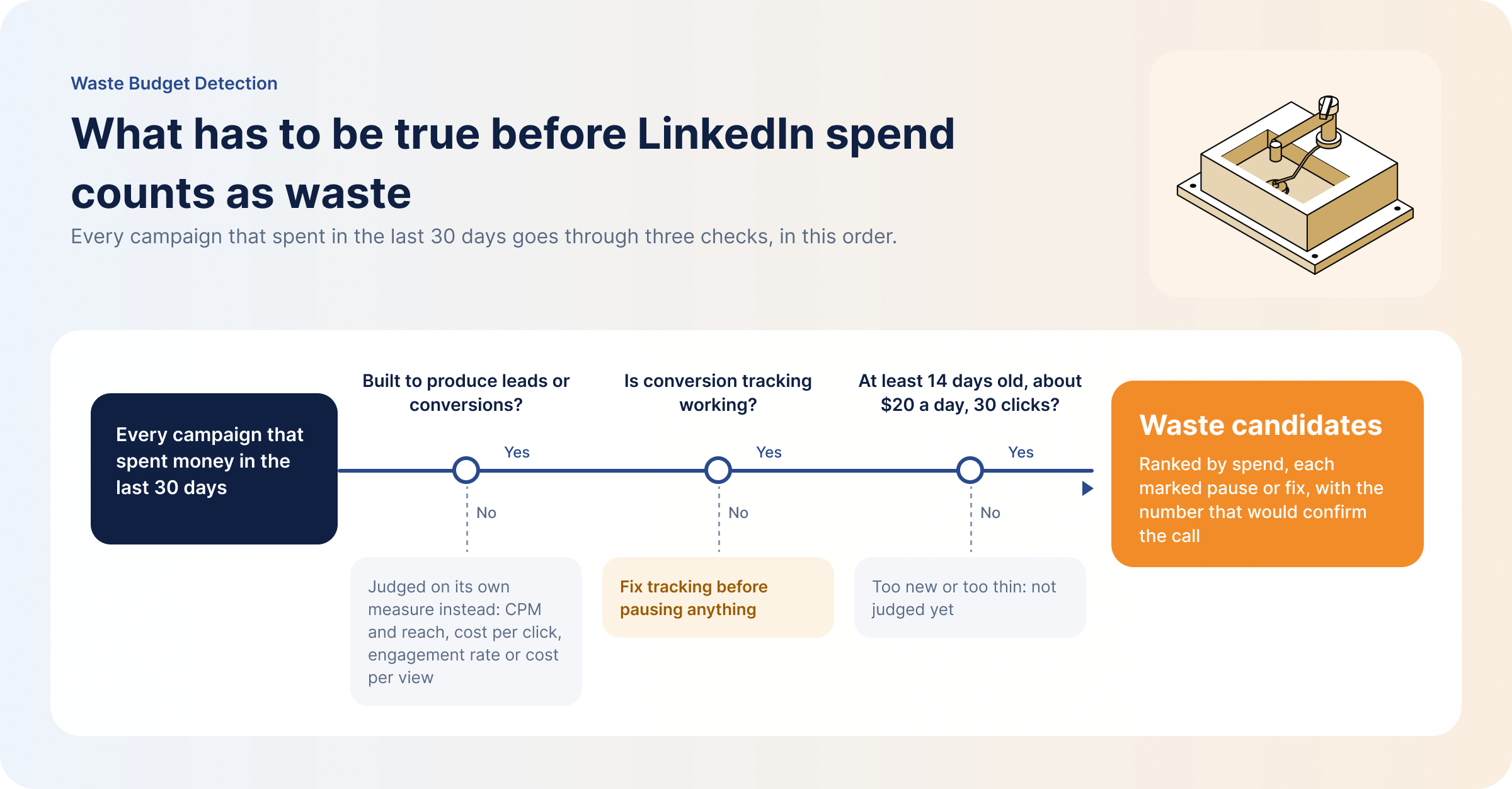
What it checks before it calls anything waste
- Each campaign against its own job. Lead gen and conversion campaigns with zero leads and zero conversions are waste candidates. Awareness, website visits, engagement and video campaigns go on a separate list, judged on their own measure: CPM and reach, cost per click, engagement rate or cost per view.
- Tracking first. If the whole account shows zero conversions, or clicks hold steady while conversions drop to zero, the skill says tracking may be broken and names the last date with a conversion.
- Too new and too thin. Campaigns that started less than 14 days before the end of the window, run on less than about $20 a day or have fewer than 30 clicks are marked as such instead of being called waste.
That first check follows one of the Standard’s rules: judge Text, Spotlight and Follower ads on reach and CPM, not CTR. Those formats are there for cheap visibility, so clicks are the wrong measure for them.
What to do with the result
The answer opens with a summary of every campaign that spent, split into waste candidates, campaigns built for something else, and ones too new or too thin to judge, with the dollars in each group. Below it is a table of real candidates, ranked by spend, each marked pause or fix.
If the skill flags tracking, stop there and fix it, because no pause decision means anything while conversions aren’t being counted. Otherwise, work from the top of the list. Pause only what’s marked pause: not new, not thin, tracking working, real money spent. For everything marked fix, the skill names what to look at (audience size, creative, landing page, tracking or bid) and asks what changed in your account, since an export can show a drop but not the reason behind it. Each item also says what would confirm the call, for example 14 more days with at least 30 clicks.
2. Creative Decay Watchlist: Catch LinkedIn Ad Fatigue Without Pulling Your Winners
Creative fatigue is the most common diagnosis in LinkedIn Ads and one of the least checked. CTR drops, someone says “the audience is tired of it”, and a new batch of ads goes into production. Sometimes that’s right. Often the ad was fine and the whole campaign dipped, or the ad was too new to judge, or the “drop” was one slow week.
Creative Decay Watchlist separates those cases. It looks at each ad week by week over 120 days, flags only declines that hold, and compares every flagged ad with the other ads in the same ad set before it blames the creative. It also lists the ads that improved with age, so they don’t get swapped out with the tired ones.
Creative Decay Watchlist
Finds LinkedIn ads whose CTR has slid for weeks, tells a tired ad from a campaign-wide dip, and lists the ads that got better with age.
By DemandSense · reads your data, changes nothing
An ad performance export for the last 120 days with a daily breakdown and the format and video columns. For a fatigue call: each campaign’s average frequency over 90 days.
Flagged ads with the week the decline started and the spend since, a watchlist, a keep list, campaign-wide dips, and a separate table for coverage formats.
- In Campaign Manager, click Export and pick report type Ad performance, the last 120 days, time breakdown Daily. Add the format and video columns the picker offers.
- From the campaign report, export each campaign’s average frequency for the last 90 days. Without it you get a decay signal, not a fatigue call.
- Attach both files to a new Claude chat and paste the prompt below.
Load the Creative Decay Watchlist skill from https://github.com/demandsense-labs/linkedin-ads-skills/tree/main/creative-decay-watchlist and run it on the exports I've attached.- Connect DemandSense MCP to Claude once (here is how).
- Paste the prompt below. Claude pulls the ad-level history from your workspace.
- Follow up in the same chat, for example: “which flagged ads also run in another ad set, and how are they doing there?”
Load the Creative Decay Watchlist skill from https://github.com/demandsense-labs/linkedin-ads-skills/tree/main/creative-decay-watchlist and run it on my DemandSense workspace. Pull the data through the connector rather than asking me for exports.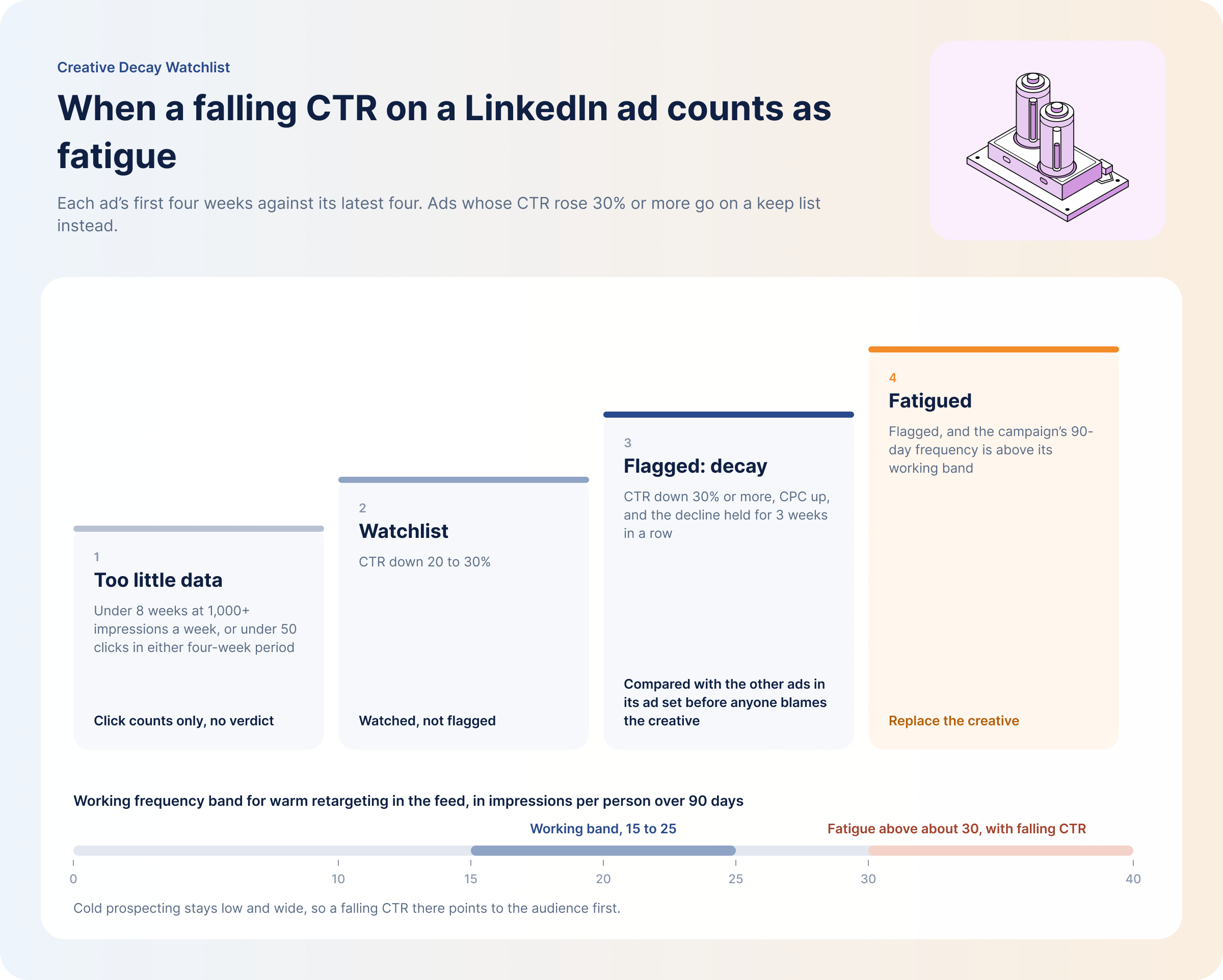
What it checks
- Enough history to judge. It only ranks ads with at least 8 weeks at 1,000 or more impressions a week, and 50 or more clicks in both the first and the latest four weeks. Below that, you get the click counts and nothing more. On a young account, “not enough history” is the right answer.
- A decline that holds. An ad is flagged when its CTR fell 30% or more, its CPC rose, and the decline held for three weeks in a row. A 20 to 30% drop goes on a watchlist.
- The ad or the campaign. If every ad in the same ad set fell over the same weeks, the audience or the campaign is the problem, and new creative won’t fix it.
- Each format by its job. Text, Spotlight and Follower ads are judged on CPM and impressions, video on completion rate, and Message and Conversation ads are left out of CTR comparisons. If you’re not sure what CTR to expect from a format, here’s what a good CTR for LinkedIn Ads looks like.
- Decay or fatigue. With frequency in the data, it calls an ad fatigued only when its campaign’s frequency is above the working band and CTR keeps falling. For warm retargeting in the feed, that band is 15 to 25 impressions per person over 90 days, with fatigue above about 30.
The last check is the Standard’s rule call it fatigue only when frequency is high and CTR keeps falling. Either signal on its own isn’t fatigue.
What to do with the result
You get counts that add up, then a table of flagged ads with the CTR in their first and latest four weeks, the week the decline started and the spend since. Under it sit the watchlist, the keep list and any campaigns where every ad fell together.
Replace the flagged ads with the most spend since their decline started, and confirm frequency in Campaign Manager before you swap anything. For a campaign-wide dip, look at the audience and the offer before you brief new creative. Leave the keep list alone: ads whose CTR improved 30% or more have often picked up likes and comments that make them cheaper to run, so they stay on until the data says they’re tired.
3. No-Deal Warm Leads Finder: Turn LinkedIn Ad Engagement Into a List for Sales
Most B2B teams have more warm accounts than they realize. Companies click the ads, come back to the site, read the pricing page, and then nothing happens, because the engagement lives in Campaign Manager, the visits live in a visitor identification tool, and the deals live in the CRM. Nobody lines the three up, so nobody tells sales.
No-Deal Warm Leads Finder does the lining up. It takes the companies that engaged with your ads or site in the last 90 days, drops existing customers and anyone with an open deal, screens out the companies that look engaged but will never buy, and ranks the rest in tiers by how real their interest is.
No-Deal Warm Leads Finder
Lists the companies engaging with your LinkedIn ads or website that have no open deal and aren't customers, ranked by how real their interest is.
By DemandSense · reads your data, changes nothing
A Companies export from Campaign Manager (last 90 days), CRM companies and deals, and a visitors-by-company export from your website visitor identification tool if you have one.
A top-20 list in tiers (companies engaged on both channels first), a short check-by-hand list, a count of what was screened out, and the full list as a CSV when it’s long.
- In Campaign Manager, open the Companies tab and export the last 90 days.
- Export companies and deals from your CRM (HubSpot, Salesforce, Attio or similar). Add a visitors-by-company export from your visitor identification tool if you have one. It’s optional, but it makes the list much better (how visitor identification works).
- Attach the files to a new Claude chat and paste the prompt below. Add a list of competitor domains to leave out, if you have one.
Load the No-Deal Warm Leads Finder skill from https://github.com/demandsense-labs/linkedin-ads-skills/tree/main/no-deal-warm-leads-finder and run it on the exports I've attached.- Connect DemandSense MCP to Claude once (here is how).
- Paste the prompt below. LinkedIn company engagement, identified site visitors and CRM status come from your workspace, so there are no files to match by hand.
- Follow up in the same chat, for example: “which Tier 1 companies looked at the pricing page?”
Load the No-Deal Warm Leads Finder skill from https://github.com/demandsense-labs/linkedin-ads-skills/tree/main/no-deal-warm-leads-finder and run it on my DemandSense workspace. Pull the data through the connector rather than asking me for exports.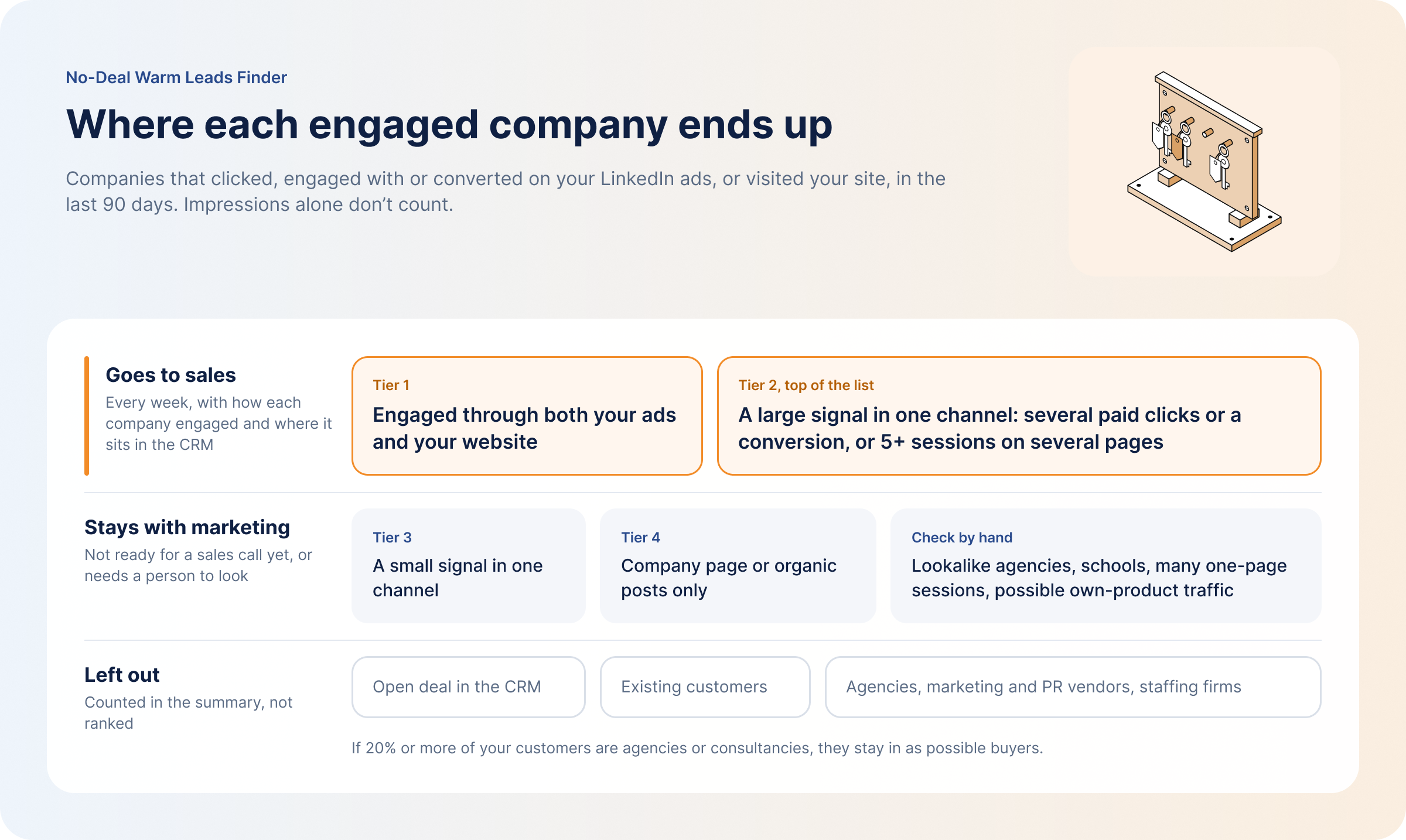
What it checks
- Interaction, not exposure. Engagement means paid clicks, engagements, conversions and real website visits. Impressions alone count as exposure. Engagement with your company page or organic posts is shown as its own signal and ranked lower.
- Where each company sits in the CRM. Companies with an open deal and existing customers drop out. The rest are split into companies with no CRM record at all and companies that are in the CRM with no deal.
- Who isn’t a buyer. Agencies, marketing and PR vendors and staffing firms are screened out. Lookalikes, schools and visitors with many one-page sessions go to a check-by-hand list. If 20% or more of your customers are agencies, it keeps them as possible buyers and says why.
- Tiers instead of a made-up score. Tier 1 engaged through both ads and the website. Tier 2 shows a large signal in one channel, Tier 3 a small one, and Tier 4 engaged with your company page only.
What to do with the result
You get a top 20 in tiers, a check-by-hand list grouped by reason, and a count of everything that was screened out. Send Tier 1 and the top of Tier 2 to sales every week, with how each company engaged and where it sits in the CRM. That’s the Standard’s rule give sales a weekly ranked list of warm accounts, checked against the CRM, and the opposite of forwarding a raw visitor feed. The check-by-hand list stays with marketing.
One limit to keep in mind: the list shows interest, not fit. If you need it filtered by your ICP before it goes to sales, Justin Rowe’s Warm-lead handoff scenario, covered next, does that.
Skills and Scenarios From LinkedIn Ads Experts
The three skills above are DemandSense’s. The B2B AI Standard also publishes skills and scenarios from LinkedIn Ads specialists: the checks they run on client accounts, written so Claude can run them on yours. They work the same way, with exports or through DemandSense MCP.
If you ran the warm leads skill, Justin Rowe’s Warm-lead handoff is the natural next step. It keeps only the accounts that fit your ICP, matches them to the CRM and writes one handoff line per account, so sales knows who to call this week. Joshua Stout’s Company-level account routing shows which companies take most of your impressions and which target accounts barely see you, and AJ Wilcox’s Cost per retargetable member works out what it costs to add one person to your retargeting audience. The rest are in the full collection.
Where These Skills Come From: The B2B AI Standard for LinkedIn Ads
The more LinkedIn Ads work goes through AI, the more everyone ends up writing their own rules for it: what to ignore, what context the numbers need, when a drop is a real problem. Most of those rules live in someone’s head or in a prompt they keep in a note.
Get the answer that fits your campaigns, not any campaign
The Standard puts the rules of people who run LinkedIn Ads every day in one place: 15 rules, each saying what LinkedIn does by default and what to do on top of it, plus the skills and scenarios that apply them, from DemandSense and 11 expert authors. Everything is free to use and adapt under CC BY 4.0. If you run a check that isn’t there yet, submit it and it’s published under your name.
FAQ
They’re folders of instructions, each with a SKILL.md file, that tell Claude how to do a specific marketing task: what data to ask for, which method to follow and what the answer should include. Claude loads a skill when your request matches it, so the method stays the same every time you run it.
No. In Claude.ai you can paste a skill’s prompt into a chat with your exports attached, or upload the skill’s ZIP under Customize → Skills. Claude Code is one more place to run them, with a single install command for the whole collection.
Yes. Every skill and scenario in the B2B AI Standard is free to use and adapt under CC BY 4.0, as long as you credit the author. Running them through DemandSense MCP needs a DemandSense account, and the 30-day trial needs no card.
No. They read the data you attach or connect and give recommendations. None of them can pause a campaign, change a budget or edit anything in your CRM.
The prompts work in any assistant that can read a web page, since the skill files are public on GitHub. Codex, Cursor, Gemini CLI and GitHub Copilot can also install the SKILL.md files directly with Vercel’s skills CLI.